Alfrodin brings Alfresco straight into Microsoft Office
The first-class client for Alfresco, right inside Outlook, Word, Excel and PowerPoint.
- Edit files directly in Microsoft Office (Word, Excel, PowerPoint)
- Browse, preview and file sites, folders and documents
- Drag and drop emails and files into Alfresco
- Wiki, blog, data lists, calendar, links, discussions
- Tasks, follow-ups, email signatures, site management and administration
- On Windows, Mac and in the browser
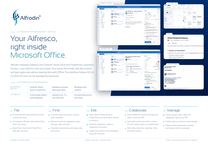 Product overview as PDF Features, pricing and requirements
2 pages · 1.7 MB






Everything you need
Powerful Alfresco integration built for your daily workflow
Edit files directly in Microsoft Office
With "Edit in Office" you open a file from Alfresco directly from Outlook, Word, Excel or PowerPoint in Word, Excel or PowerPoint, on Windows and Mac. When you save, Office writes the changes straight back to Alfresco, and while you edit, the file is locked for others. Office signs in with your company account; chapter 3 of the manual describes the setup on the Alfresco server.
Email Archiving
Upload emails with attachments directly from Outlook to Alfresco. One click, fully archived.
Follow-ups
Alfrodin reminds you of items in Alfresco data lists before they are due. You can also set follow-ups on documents and folders, for yourself or other site members. As with workflow tasks, everything that is due appears in one central place.
Metadata with aspects
Edit the properties of a document directly in the task pane, including the fields your organization has defined in Alfresco itself. You add or remove aspects, choose categories from the category tree, and on request a document receives a more specific type such as "Invoice".
Create and edit content
Create text, HTML, XML and JSON documents directly in the task pane, or create documents and folders from templates. You edit the content in the full-screen editor with zoom and "Format"; every save creates a new version. You unzip ZIP archives and ZIP attachments, including their folder structure, into a folder of your choice.
Discover sites
Find more sites directly in the task pane: search by name or description and, depending on the site, join with one click or request to join with a message. Site managers see pending requests at a glance and accept them with the right role.
Folder rules
Folder rules run actions automatically as soon as documents arrive in a folder, change there or leave it: copy, move, convert to PDF, notify by email and more. You set up everything directly in the task pane.
Browse & Navigate
Full folder browser with breadcrumb navigation. Access all your Alfresco sites without leaving Microsoft Office.
Document Save
Save Word, Excel & PowerPoint files directly to Alfresco folders - with version control.
Full-text Search
Search your Alfresco repository by name, content or metadata and narrow the results by categories, tags, file type, date and size.
Favorites
Quick access to your most-used folders and files. Synced with your Alfresco favorites.
Workflows
Start, edit, cancel and delete workflows; claim, approve and complete tasks. Directly in Outlook, Word, Excel and PowerPoint.
Drag & Drop
Drag files from your desktop directly into Alfresco. Bulk upload with progress tracking.
Public Links
Create shareable links for external collaboration. Set expiry dates for security.
Send by Email
Send any Alfresco document straight into a new Outlook email - as a link, a public share link, or a file attachment.
Flexible Authentication
Basic Authentication or OpenID Connect - connect via Keycloak, Microsoft Entra ID, or any OIDC-compatible Identity Provider.
Multilingual
Available in English, German, French, Spanish, Italian, Dutch & Czech. Adapts to your Microsoft Office language settings.
Wiki
Read, write and edit Alfresco wiki pages - with version history and restore, wiki links and images. The full wiki, right inside Microsoft Office.
Blog
Read, write and publish Alfresco blog posts - with drafts, comments, tags and version history. The full blog, right inside Microsoft Office.
Data lists
Keep a site's tasks, issues, contacts and events up to date, with reminders before items are due. Full-screen table, a filter for every field, CSV and PDF report.
Calendar
Site events as an agenda, or as month, week and day in full screen. Create recurring events and copy an event into Outlook.
Link collection
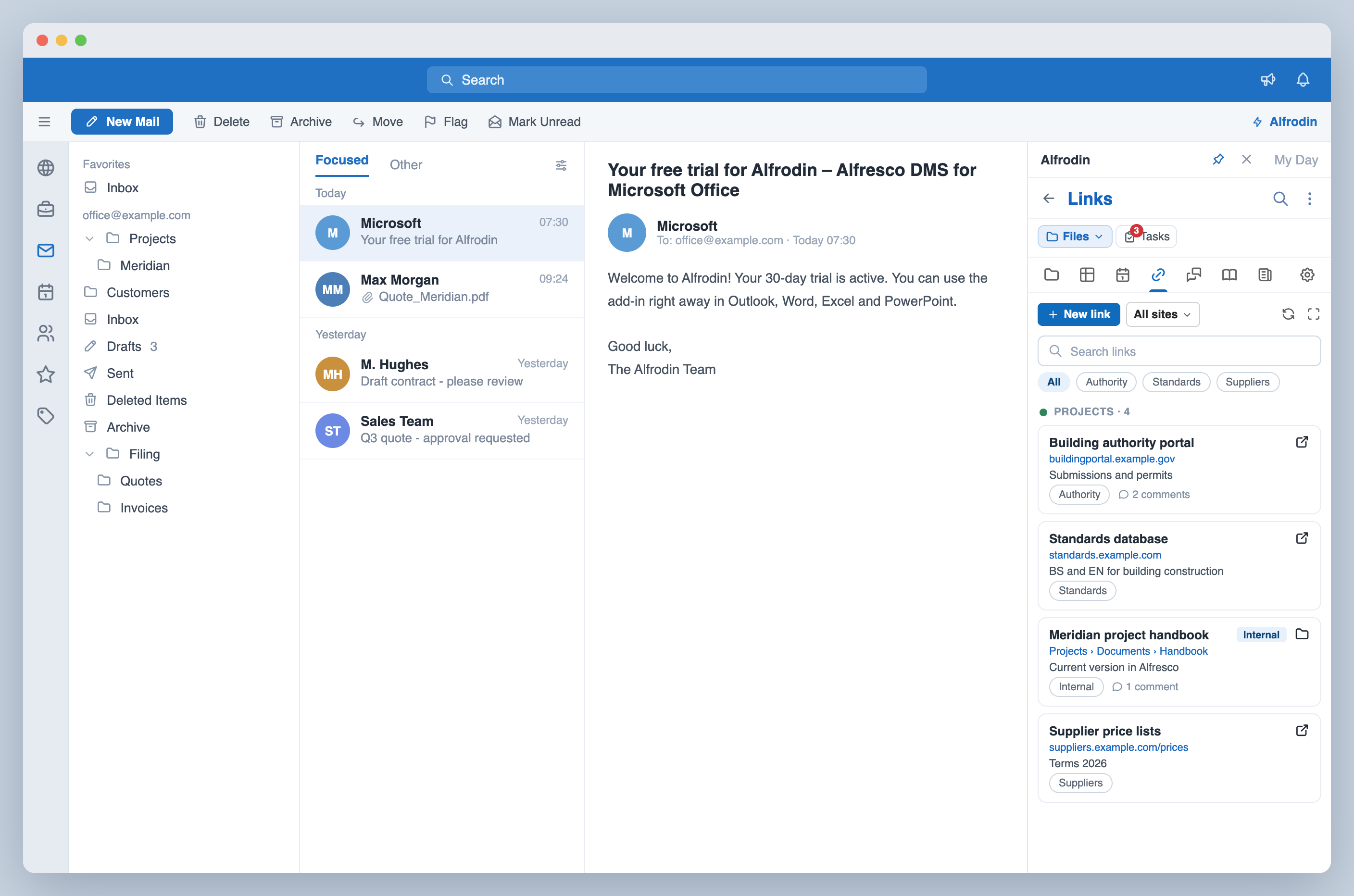
Collect, comment on and open the addresses of a site. Internal targets open right in the task pane.
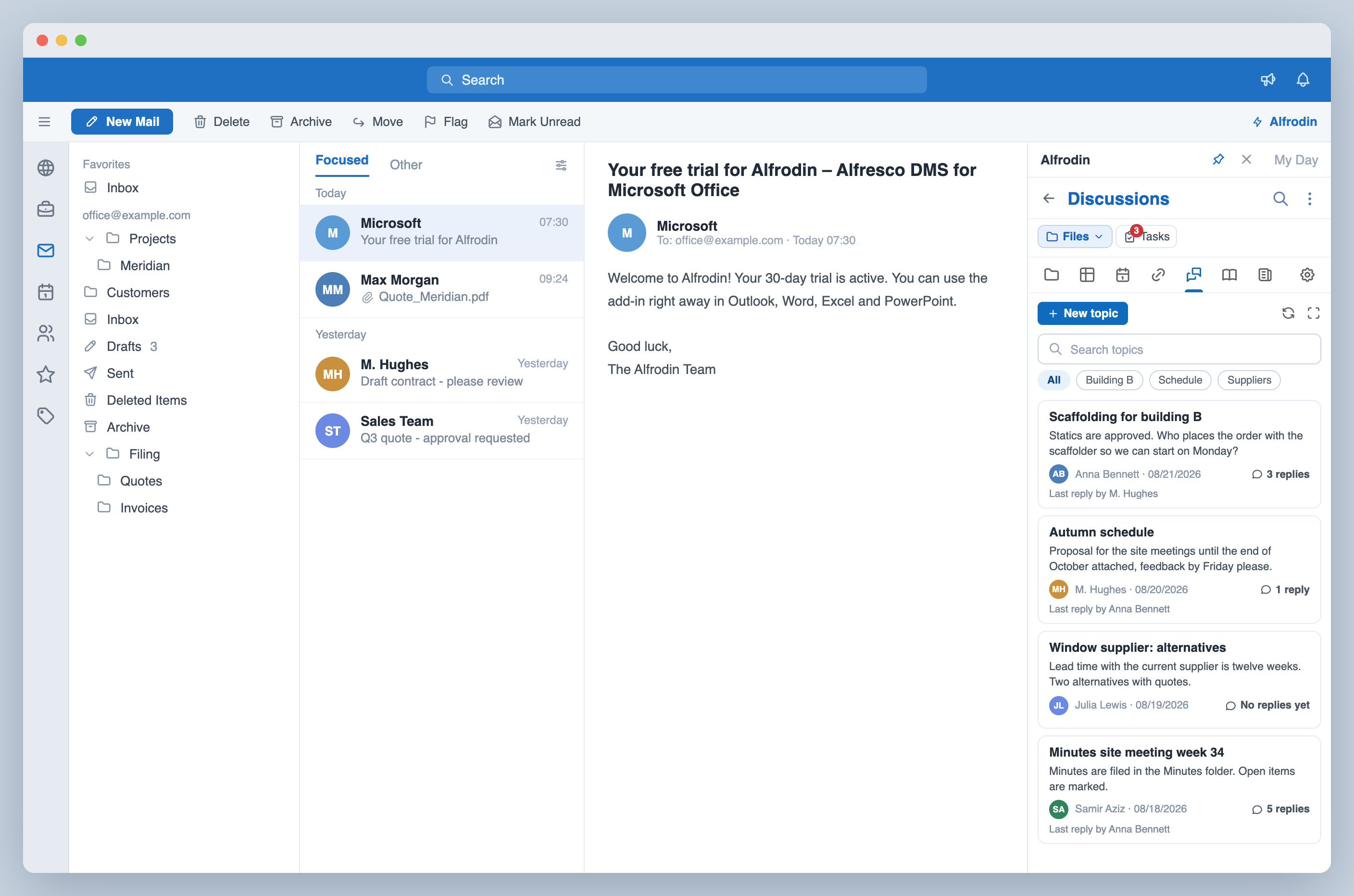
Discussions
Read and write topics and replies, in full screen with an indented thread.
Email signatures
Design signatures centrally from building blocks and assign them through Alfresco groups, with live preview, several languages and campaign periods. The content comes from the Alfresco profile, the directory sync and group values.
Administration
Maintain accounts, quotas and administrator rights, import users from a CSV file, create groups and grant roles in sites. Manage all sites, tags and categories on the server, with reports as PDF.
Built for the tools you already use
Simple, transparent pricing
Alfrodin
One add-in for your entire Microsoft Office suite
- Email archiving with attachments
- Browse & navigate Alfresco
- Save & manage documents in Alfresco
- Full-text search
- Drag & drop for files & emails
- Document & email preview
- Workflows, reviews & tasks
- Follow-ups with reminders
- Favorites & public links
- Wiki & blog collaboration
- Smart filing alerts on send
- Basic Auth & Identity Provider (OIDC)
- Multilingual (EN/DE/ES/FR/IT/NL/CS)
Choose how to buy
- Billed via Microsoft 365
- Central IT deployment
- Enterprise invoicing & PO
- Cancel anytime

- All major payment methods (cards, PayPal, Apple/Google Pay, SEPA, Klarna)
- Cancel anytime
 Buy via
Digistore24
Frequently asked questions
Which Microsoft Office apps are supported?
Alfrodin works in Microsoft Office (Outlook, Word, Excel, PowerPoint), in the desktop versions for Windows and Mac and in the web versions (Microsoft 365).
Can I edit files directly in Microsoft Office (Word, Excel, PowerPoint)?
Yes. "Edit in Office" opens a file from Alfresco in Microsoft Office (Word, Excel or PowerPoint) on your Windows or Mac computer. When you save, Office writes the changes straight back to Alfresco, and while you edit, the file is locked for others. You find the action in the three-dots menu and in the detail view of a file.
What needs to be set up on the Alfresco server?
Office works directly with the Alfresco Office Services (AOS) on your server and signs in through your identity provider, such as Microsoft Entra ID. Your administrator sets up AOS and the identity provider for this, for Office for Mac also the proxy in front of Alfresco, and on Windows allows the server for sign-in in Office. Users sign in to Alfrodin with the same company account. Chapter 3 of the manual describes all steps, and the appendix contains the ready-made configuration.
Which Alfresco versions are supported?
Alfrodin supports Alfresco Community Edition and Alfresco Content Services (Enterprise) in versions 6.x, 7.x, 23.x, and 25.x. Both on-premise and cloud deployments are supported.
Which Alfresco site modules does Alfrodin support?
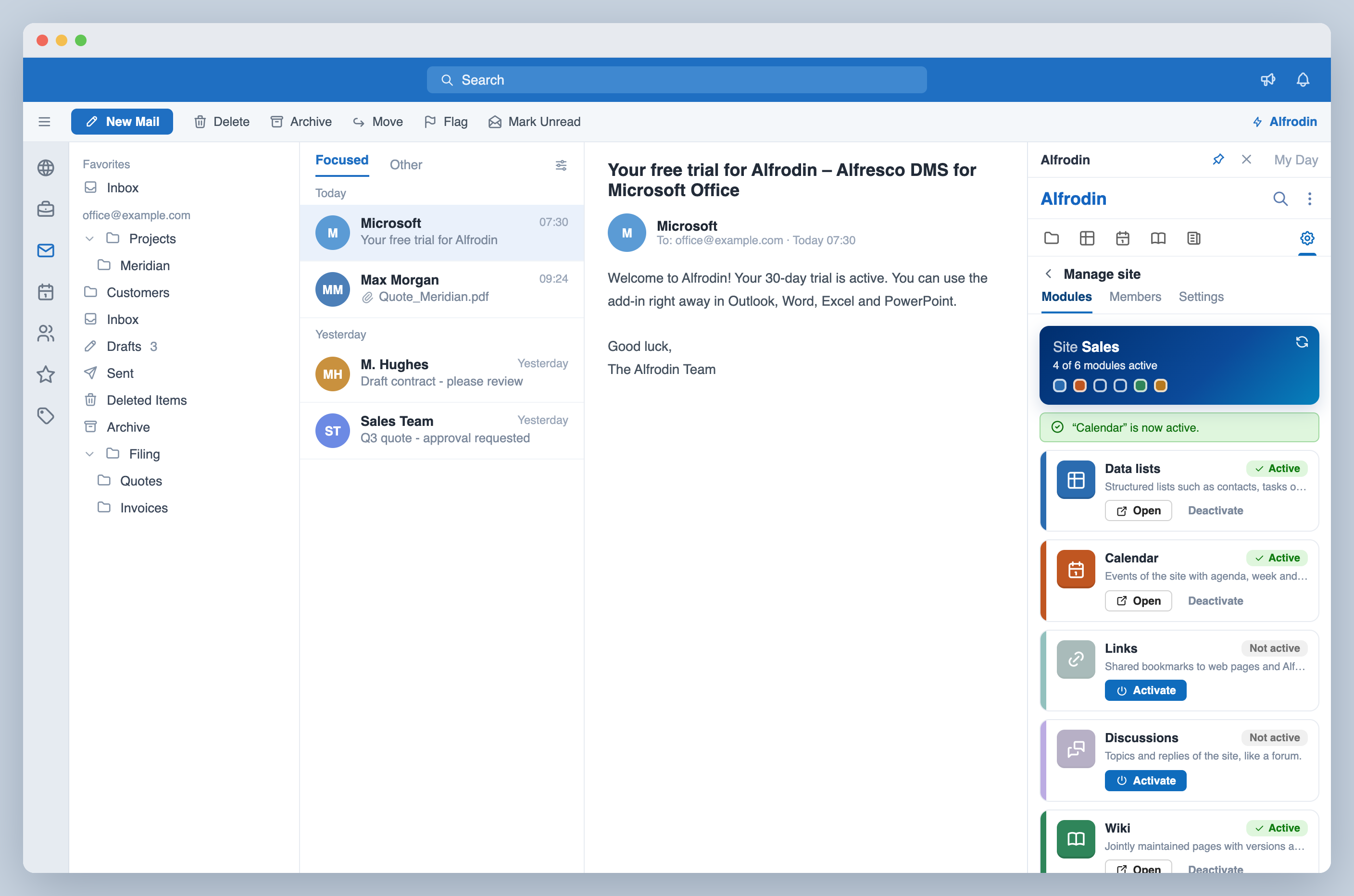
Alfrodin supports all standard modules of an Alfresco site: documents, wiki, blog, data lists, calendar, links and discussions. They are available in the task pane and in full screen, with the same permissions as in Alfresco Share. A site manager decides per site which modules appear and activates them with one click.
What does the email signatures module do?
You design a signature in minutes from ready-made blocks, multi-column layouts included, and assign it to your Alfresco groups; group membership decides who gets which signature. The content comes from the Alfresco profile, an AD or LDAP sync and from values held centrally for an entire group. Signatures are multilingual, can be limited to a campaign period with start and end dates, and follow a clear ranking when someone belongs to several groups. Everything is stored, versioned, in your own Alfresco. The email signatures module is included in the price and can be set up with just a few clicks. Read the manual →
Are custom attributes supported for email signatures?
Yes. In addition to the prepared attributes, your own can be defined centrally and used in every signature. They are created in the Alfresco content model, which makes them readable for other applications as well, and they can be filled through the directory sync. Once created, an attribute stays, so that maintained values are not lost.
Can I manage users and groups in Alfrodin?
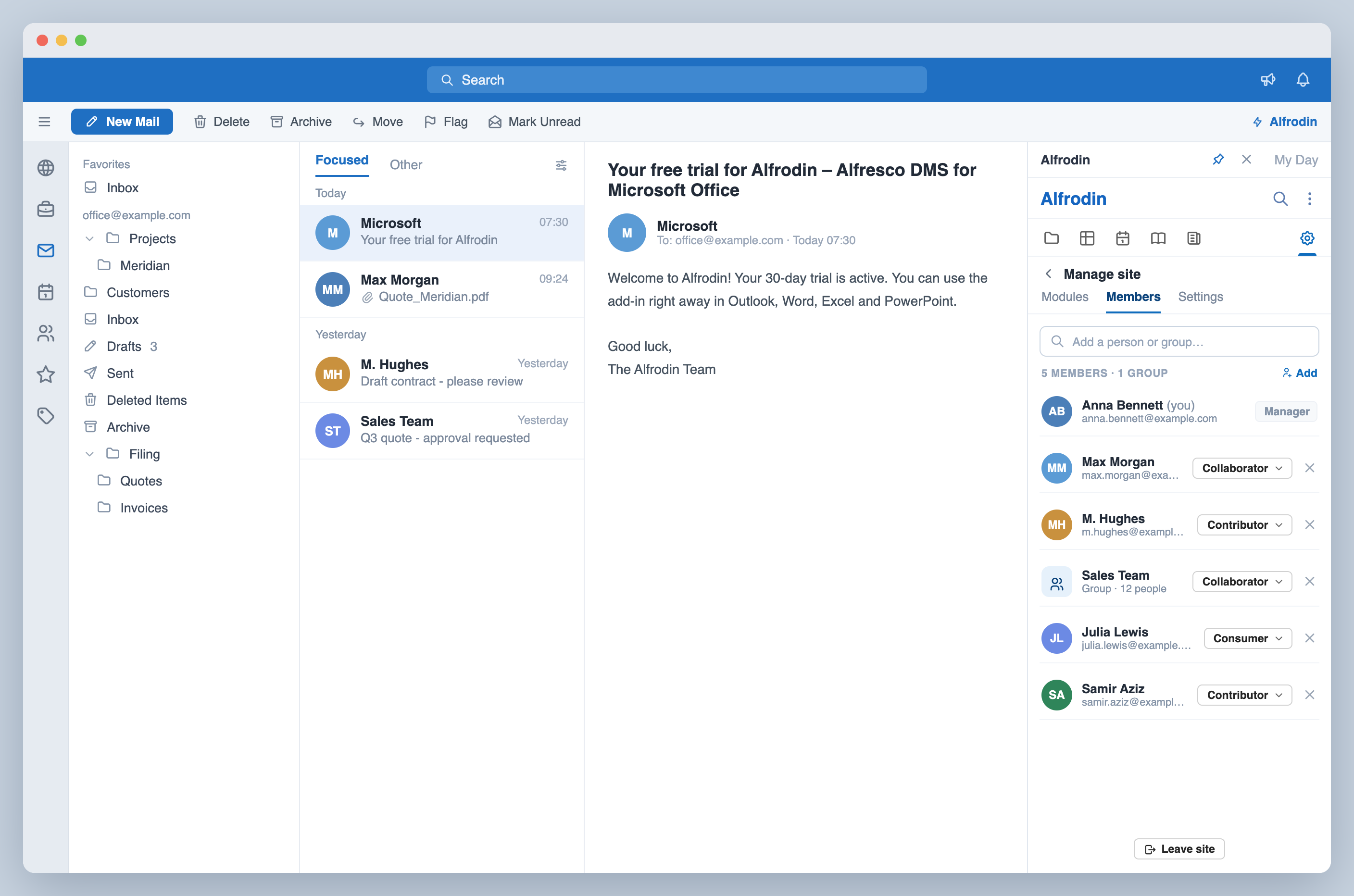
Yes. Alfresco administrators maintain user accounts, groups and roles in sites right inside Microsoft Office: profile details and access, password, administrator right and storage quota, plus groups with their members and subgroups. They import new accounts from a CSV file and manage all sites on the server, the tags and the category tree. The area appears in the settings for accounts with the administrator right, and no setup is required.
What applies to accounts from a directory service?
Alfrodin recognises accounts and groups from a connected LDAP or Active Directory and states their origin. They continue to be maintained in the directory, and they can be used everywhere in Alfrodin: in groups, with a role in a site and in all four PDF reports. Your directory stays the leading source, and the administration in Alfrodin works with the same accounts.
Can I manage my own Alfresco account in Alfrodin?
Yes. In the settings under "User" you change your Alfresco password, turn the email notifications Alfresco sends on or off, and decide per site which activities appear in your "Recent" list. Everything is stored on your Alfresco server and applies immediately in Alfresco Share as well. Changing the password is available when you sign in with username and password; with single sign-on your identity provider manages the password.
How do I control which activities appear under "Recent"?
The "Recent" list shows the activities of your sites, such as new documents or comments. In the settings under "User" you decide per site whether its activities are added to your list. The setting applies to all future activities; existing entries remain. Alfresco Share uses the same control for its activity feeds.
Is my data secure?
Alfrodin keeps your documents between your Microsoft Office apps and your own Alfresco server - we never store your content. The connection is direct by default; if a direct browser connection is not permitted, traffic is securely relayed through our service (encrypted in transit, never stored). Your administrator can enable a fully direct connection via CORS. See the manual for the CORS setup →
Why do we need to provide the address of our Alfresco server for the trial?
In the trial form, you provide the same address that you enter when signing in to the add-in after installing Alfrodin for Microsoft Office. The principle is the same: it tells Alfrodin which Alfresco server to work with. For Alfrodin Web, the address is set with the trial, and Alfrodin Web connects exclusively to this server.
Does Alfrodin see the data on our Alfresco server?
Alfrodin Web is an application that runs in your browser: our server delivers it, and from then on it works entirely in your browser. With CORS approval, a setting your IT makes once on your Alfresco server, your browser connects to your Alfresco server directly and encrypted; at no point do our servers see your documents or your password. The add-in in Outlook, Word, Excel and PowerPoint works the same way. Without this approval, our service forwards the requests to your server encrypted and stores no content.
What data do you store for the trial?
Company, name, email address, the chosen product and, for Alfrodin Web, the server address. We use them only for your trial and delete them on request. Details are in the privacy policy.
Can I deploy Alfrodin to my entire organization?
Yes! IT admins can deploy Alfrodin centrally via the Microsoft 365 Admin Center. Purchase through the Microsoft Marketplace for seamless organization-wide deployment.
What happens after the trial?
Every license includes a 30-day free trial - no billing occurs during those 30 days. After the trial, your subscription continues automatically at the selected plan price. You can cancel any time during or after the trial; all your settings and favorites are preserved.
Do you offer refunds?
Yes, you have a 14-day right of withdrawal. If you’re not satisfied, contact us for a full refund.
How do I install Alfrodin?
Open any Office app, click Home → Add-ins (in older versions: Insert → Get Add-ins), and search for “Alfrodin”. IT admins can also deploy centrally via the Microsoft 365 Admin Center. Full setup guide →
Why are there three Alfrodin entries in the Microsoft Marketplace?
Alfrodin® - Alfresco DMS for Microsoft Office (SaaS) is the license: purchase your subscription there and assign licenses to your users in the Microsoft 365 admin center (Billing → Licenses). Alfrodin for Outlook and Alfrodin for Office are the free add-ins - the actual software you deploy via Integrated Apps or install via "Get Add-ins". Buy the license once, install the free add-ins, sign in with Microsoft - done. All three entries also appear in the admin center catalog (Integrated apps → "Get apps"): for the SaaS entry, "Get it now" starts the license purchase; for the add-ins, it starts the deployment. Your end users do not need to do anything for setup - after deployment they simply open the add-in, sign in with Microsoft once if prompted, and connect to your Alfresco server. Every Alfrodin release passes Microsoft's Marketplace certification review before it is published.
Test free of charge for 30 days
Personal trials with the full range of functions for up to three users of your team, for Alfrodin Web, Alfrodin for Microsoft Office or both. No payment details required; they end automatically.
Request a trial